

HTML5 banner ads are a fantastic way to promote products, services, or brands. This guide is filled with learnings, examples, and templates we've gathered along the way.
You know those little ads that pop up when you're reading an article, checking the weather, or browsing your favorite website?
Those are display ads.
Some are simple images. Others move, reveal products, or invite you to interact with them. And behind many of those more creative experiences is a familiar trio: HTML, CSS, and JavaScript.
Yep, the same technologies used to build websites.
HTML5 banner ads give designers and marketers more creative control over how a brand shows up across the web. But they also come with rules, technical requirements, and a whole lot of banner sizes.
So whether you're a designer putting together your first campaign, a marketer exploring creative options, or a developer building custom ads, this guide will help you get started.
We'll cover what HTML5 ads are, how to design them, the tools available, and what you'll need to know before sending your little creations into the wild.
1. What are HTML5 Google Display Ads?
Let's start with display advertising.
Display ads are visual advertisements that appear across websites, apps, and other digital experiences. They typically combine imagery, messaging, branding, and a call to action (CTA) to encourage someone to visit a website, learn about a product, or take the next step.
Google's Display Network (GDN) is one of the platforms businesses use to reach people while they're browsing online.
Google offers different ways to create display ads, and choosing the right format depends on how much creative control you want, what you're advertising, and where you want your ads to appear.
The three main types of Google Display Ads
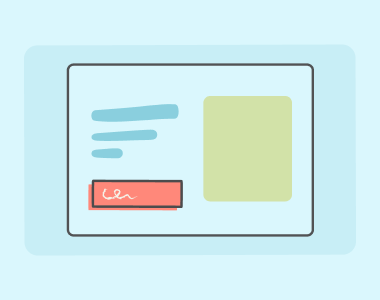
Image ads: Simple and straightforward
These are your classic banner ads. They're made from images such as JPG, PNG, or animated GIF files.
You design the ad, export it, and upload it to Google Ads.
They're relatively easy to create and work well when you need a simple message, consistent branding, or a quick campaign.
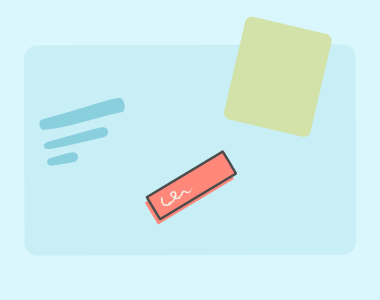
Responsive ads: Flexible and automated
You provide Google with assets like images, logos, headlines, and descriptions.
Google then combines those assets into different layouts to fit available advertising spaces.
This approach offers more flexibility and potentially broader reach, but you have less control over the exact appearance of each ad.
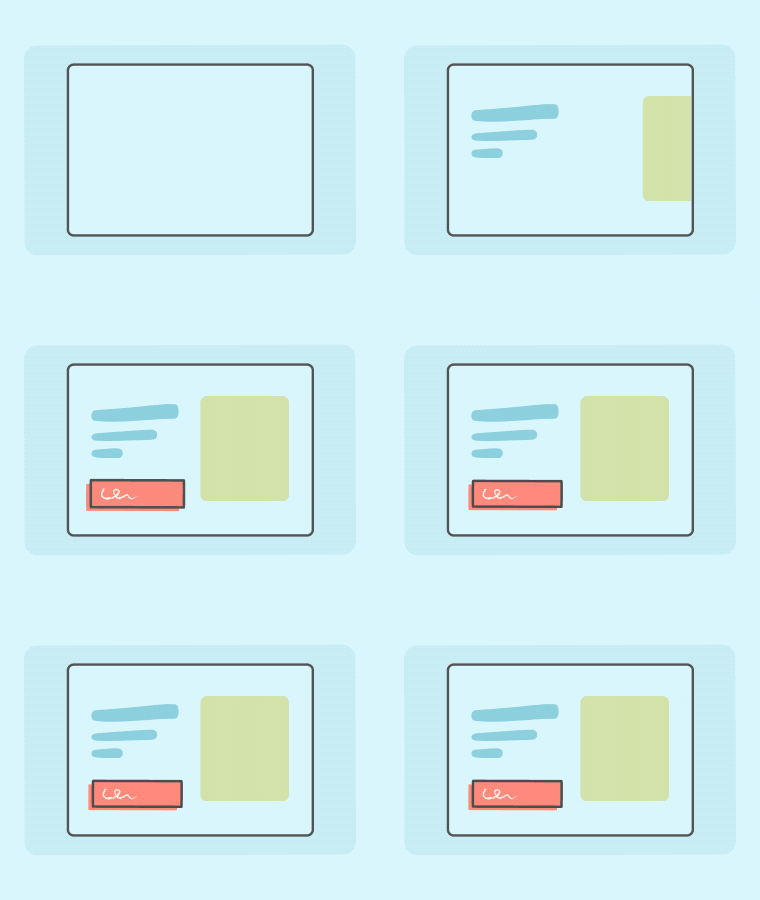
HTML5 banner ads: A little website inside an ad
HTML5 ads are built using HTML for structure, CSS for styling and animation, and JavaScript for functionality.
They can include animated transitions, product galleries, interactive elements, and other experiences that go beyond a static image.
Because you're working with code, you have much more control over how everything looks and behaves.
The tradeoff is that they require more planning, development, and testing. And not every Google Ads account is eligible to upload them.
Which Google Display Ad format should you choose?
| Format | Best for | Creative control |
|---|---|---|
| Image | Simple campaigns and quick production | High within a fixed layout |
| Responsive | Broad placement coverage and asset-based campaigns | Shared with Google |
| HTML5 | Custom animation and branded experiences | High, within platform restrictions |
Here's something worth remembering: you don't necessarily have to choose just one.
A campaign might use responsive ads for broader placement opportunities and custom HTML5 ads for experiences that need more precise creative control.
Before you start: Google restricts HTML5 uploads to eligible advertising accounts. Check your account's access and campaign support before investing in production. Google's Display campaign tools are also transitioning toward Demand Gen, so the available publishing workflow may depend on your account.
2. Designing HTML5 banner ads that people actually notice
Here's the interesting thing about banner ads: you're designing for an audience that probably wasn't looking for your ad in the first place.
They're reading an article, browsing a website, or checking out something completely unrelated.
And your little rectangle has to communicate something meaningful without becoming an annoying distraction.
Good banner design isn't about squeezing as much information as possible into a tiny space. It's about getting the right message across, quickly and clearly.
Start with one message
- Who is this ad for?
- What is the one thing they should understand?
- What do you want them to do next?
Before jumping into Figma or an animation timeline, answer three questions:
Let's imagine we're creating a campaign for a new budgeting app.
We could fill the banner with charts, features, product screenshots, testimonials, and a paragraph explaining everything the app does.
Or we could focus on one idea: Make room for what matters.
Then show a small glimpse of the product and a clear CTA: Explore the app
One message. One visual story. One next step.
You can always create additional ads to communicate other benefits.
Create a clear visual hierarchy
Visual hierarchy is simply the order in which people notice information.
When someone sees your ad, the most important information should stand out first.
A useful structure is:
- Headline: The primary message or benefit.
- Visual: An image, illustration, or product preview that reinforces the message.
- Call to action: A clear invitation to take the next step.
- Brand: Your logo or recognizable brand elements.
Not every ad has to follow this exact arrangement, but each element should have a purpose.
And remember, a 300 × 250 banner isn't exactly a spacious canvas. Give your content room to breathe.
What are the best HTML5 banner sizes?
Google supports a variety of banner dimensions, but not every campaign needs every size.
Here are five practical dimensions to consider when planning a first set of creatives:
| Dimensions | Format | Design considerations |
|---|---|---|
| 300 × 250 | Inline rectangle | A versatile canvas for headlines, imagery, and CTAs |
| 728 × 90 | Leaderboard | A wide, shallow format that benefits from short messaging |
| 300 × 600 | Half-page | More room for product visuals and storytelling |
| 160 × 600 | Wide skyscraper | Tall, narrow layouts that require careful hierarchy |
| 320 × 100 | Large mobile banner | Compact messaging designed for smaller screens |
These are useful starting points, not a universal ranking of best-performing sizes.
Actual performance depends on your audience, placement availability, campaign goals, and creative execution.
Google supports other dimensions too, including 336 × 280, 970 × 250, and 320 × 50.
Design tip: Start with a small set of layouts that cover meaningfully different proportions rather than designing every possible size immediately.
And don't simply shrink a desktop banner to create its mobile counterpart. A message that looks great at 300 × 600 might need a completely different composition at 320 × 50.
3. Tools for creating HTML5 banner ads
Now for the fun part: making the things.
You don't necessarily have to write code to create animated banners. Several tools offer visual editors, templates, timelines, and HTML5 export functionality.
The right tool depends on how comfortable you are with design and development, and how much control you need over the finished ad.
Figma: For planning and designing
Figma is our go-to tool for digital design, and it's particularly useful for building a consistent set of banner layouts.
You can use components, shared styles, and reusable elements to keep messaging and branding aligned across different sizes.
Need to update the CTA on ten different banners? A thoughtful component system can make that much easier.
Figma doesn't automatically turn every design into a production-ready HTML5 ad, though. You'll need a compatible export workflow or additional development.
For custom campaigns, we like separating the design system from the development process so we can be deliberate about both.
Google Web Designer: For building animated HTML5 ads
Google Web Designer is a visual design and development tool created for interactive HTML5 content.
You can build layouts, animate elements along a timeline, add interactions, and publish supported files for Google Ads.
It's a useful option when you want more control than a template-based editor provides without writing everything from scratch.
The interface does take some getting used to. But once you're comfortable with the timeline, events, and publishing process, it can be a powerful addition to your toolkit.
BannerBoo: For template-based production
Tools such as BannerBoo provide visual editors and prebuilt templates for producing animated advertising creative.
They can be helpful when you're creating multiple variations or prefer a more guided workflow.
Just keep in mind that not every tool or subscription supports the same HTML5 export options. Check export format, file specifications, and Google Ads compatibility before committing to a production workflow.
Canva and Adobe Express: For quick creative exploration
Both Canva and Adobe Express are approachable tools for creating promotional graphics and experimenting with layouts.
They're especially useful for brainstorming visual directions or producing static assets.
For a custom HTML5 campaign, though, you may need to move your designs into another tool for animation, interaction, and packaging.
Custom HTML, CSS, and JavaScript: For complete creative control
If you're comfortable building websites, you already know many of the fundamentals needed to create an HTML5 banner.
The biggest difference?
Your entire experience needs to work inside a very small, highly constrained advertising environment.
You can create sophisticated motion, custom layouts, and interactive behavior, but the final output still needs to meet Google's publishing rules.
More control also means more responsibility for performance, compatibility, and testing.
4. Building and publishing HTML5 banner ads
An HTML5 banner is essentially a miniature web page. It has structure, styling, assets, and sometimes interactive functionality. But unlike a regular website, it needs to work inside a specific advertising environment with strict technical limitations.
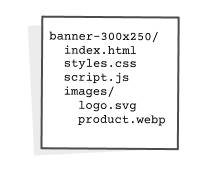
The basic structure of an HTML5 banner
A typical custom banner project might look something like this:
project/
├── index.html
 ├── styles.css
 ├── script.js
 └── assets/
    ├── image1.png
    └── image2.webp
The HTML defines the content, CSS controls how it looks and moves, and JavaScript handles any necessary interactions.
Your production files and assets need to be packaged according to Google's supported formats. The example above is a development structure; assets such as WebP should be converted to an accepted format when required by the upload specification.
Understanding file-size requirements
Here's where the rules get a little confusing.
Google applies different limits to different uploaded ad formats.
Uploaded image ads: Up to 150 KB.
Uploaded HTML5 ZIP ads: Up to 600 KB.
For HTML5, that ZIP contains the relevant HTML, styles, scripts, and supporting assets.
Those limits are worth verifying before production, since ad platform requirements can change.
Even when your files are comfortably under the maximum, smaller and more efficient assets are generally a good idea.
Images often account for much of a banner's file size, so optimize them before packaging your ad.
Images, fonts, and external assets
For Google Web Designer HTML5 uploads, images must be included as local assets in the ZIP rather than loaded from external image URLs.
Google also restricts supported web fonts. Its current Google Web Designer specifications permit Google web fonts but not other web font services.
So if your brand uses a custom typeface, you may need to plan an alternative approach, such as using approved typography or turning specific display lettering into optimized graphics.
Be thoughtful here. Converting all your text into images may solve one problem while creating others, including larger files and less flexibility.
Making an HTML5 banner clickable
A banner needs a way to send people to the advertiser's destination.
In advertising environments, this is commonly handled through an approved exit mechanism, often referred to as a click tag or exit event.
The exact implementation depends on how your ad is built and where it will be served.
If you're using Google Web Designer, use its supported exit actions and the Google Ads publishing environment.
If you're building with custom code, follow the platform's current click-tag implementation requirements rather than assuming a normal website hyperlink will work in every environment. Test before uploading.
- All imagery and typography display properly.
- The message is understandable in the final frame.
- Animations run smoothly without unnecessary performance costs.
- The click-through interaction works as expected.
- The creative behaves properly in its intended dimensions.
- Files and assets meet the platform's requirements.
- The ad works in supported browsers and devices.
Before uploading, check that:
Just because a banner works beautifully in your browser doesn't mean it's ready for a campaign.
If you use Google Web Designer, you can publish locally and upload the resulting ZIP to Google Ads.
The ad still needs to pass Google's review before it can serve.
And there's one more thing: if you revise an uploaded HTML5 ad, Google requires you to upload the updated creative as a new ad, which means it gets its own reporting history.
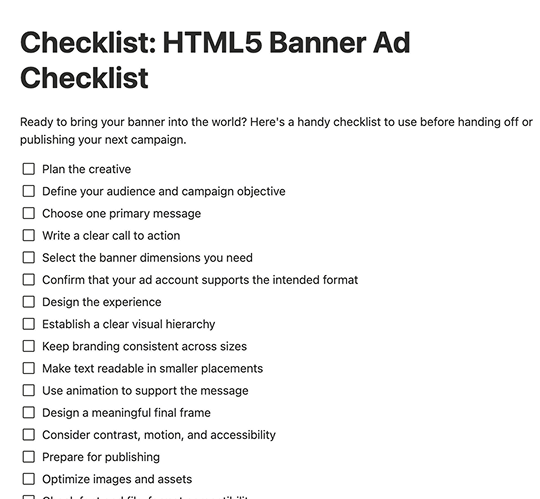
Your HTML5 banner ad checklist
Ready to bring your banner into the world?
Here's a handy checklist to use before handing off or publishing your next campaign.
Frequently asked questions about HTML5 Google Display Ads
Do I need to know how to code to create HTML5 banner ads?
Not necessarily. Tools such as Google Web Designer provide visual interfaces for creating HTML5 ads. However, understanding basic HTML, CSS, and JavaScript gives you more flexibility when creating custom experiences or troubleshooting technical issues.
Are HTML5 ads better than responsive display ads?
Not automatically. HTML5 ads provide more control over animation and creative presentation, while responsive display ads offer more flexibility across available placements. The better choice depends on your campaign objectives and how much production control you need.
Can HTML5 banner ads be responsive?
Yes. HTML5 creatives can be developed to adapt to different dimensions, including through supported responsive functionality in Google Web Designer. However, responsive resizing doesn't guarantee that the ad can appear in every available placement.
How large can an HTML5 banner ad be?
Google's current specifications allow uploaded HTML5 ZIP files up to 600 KB. Traditional uploaded JPG, PNG, and GIF image ads have a different limit of 150 KB.
Can I use animations and interactive elements in HTML5 ads?
Yes, within the limitations of the advertising platform. HTML5 ads can support animations and certain interactive features. More complex functionality may require additional restrictions, testing, or approval.
Can I upload HTML5 ads to any Google Ads account?
No. HTML5 uploads are a restricted feature, and eligibility depends on the account and Google's approval process. Always confirm access before beginning a campaign.
Useful HTML5 banner design resources
- Google Ads uploaded display ad specifications - Official formats, dimensions, and requirements.
- Google Web Designer - A visual development tool for creating interactive HTML5 creatives.
- Figma - Designing reusable layouts, components, and brand-consistent banner systems.
- Google Ads Help - Current campaign, creative, and publishing guidance.
Make your brand stand out, even in the smallest spaces
A great banner ad isn't just something that moves.
It's a little piece of your brand story, designed to communicate one thing really well.
Whether you're launching a new product, introducing your brand, or building a campaign across dozens of placements, thoughtful design can turn a small advertising space into a meaningful experience.
At Storytell Studio, we bring together brand strategy, UI design, and creative development to help businesses tell their stories clearly and consistently.
Have a campaign in mind? Let's make something worth noticing.